
Welcome screen
This is the first thing you see: a night studio with a window over a harbour. On the easel stands the map you worked on last, with Open under it; on your first day it is a blank canvas with New map. On the desk is a paper ledger of your recent maps (the eight newest) with New map and Open map… under it. The drawer along the bottom holds Open model… and the command palette. The editor's version number stands under the title. Two buttons sit in the top right corner: Plain list and Settings.
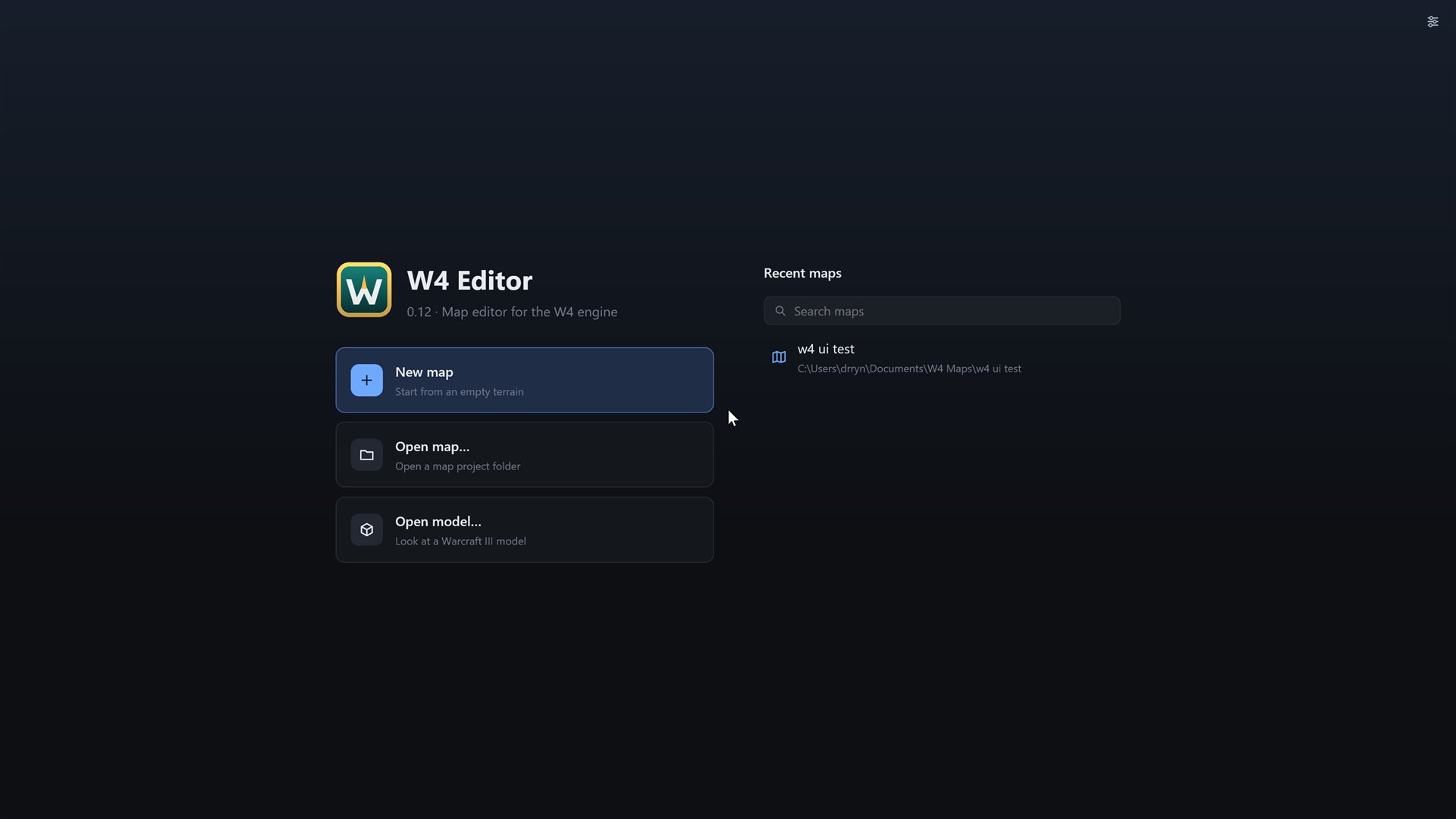
Plain list (also "Welcome: plain list or atelier" in the command palette) swaps the room for the older layout: three cards on the left and a searchable list of recent maps on the right. It lasts until you close the editor. When two recent maps share a name, the ledger shows their folder names so you can tell them apart. The screenshot below shows the plain list.
If a short fanfare plays when the editor starts, that is the startup sound. You can turn it off or change its volume in Settings.
Recent maps
The list holds the last eight maps you created or opened, newest first. Each row shows the map's name and its folder. Click a row to open the map.
Once the list has anything in it, a search field appears above it. Type any part of a name or a path. Every word you type has to appear somewhere in the row, in any order and in any case.
If a map's folder is gone, its row is greyed out and says not found. Clicking it shows an error and removes it from the list.
New map
New map opens a dialog. Press Esc or Cancel to leave without making anything, and Enter or Create to make the map.
| Field | What it does |
|---|---|
| Name | The map's name, and the name of its folder. Letters, digits, spaces, - and _ only. |
| Location | The folder the map folder goes into. The default is Documents/W4 Maps. Choose… picks another. |
| Size (tiles) | 32×32, 64×64 or 64×128, or Custom with a width and a height. Each side must be between 16 and 256 tiles. 64×64 is preselected. |
| Initial tile | The ground the whole map starts as: Earth, Grass, Dirty grass or Stone. Grass is preselected. |
The editor makes <location>/<name>/ and refuses if a folder with that name already exists and is not empty. A new map starts with every tile at cliff level 1, the sun at noon, fog of war on and the usual twelve players. The playable area is the whole map. You can change the sun, the playable area and the fog later in Settings.
Right after creating the map, the editor opens it in the Terrain module.
Close map and open another
In a map, the top bar has two buttons before Undo: Open another map… (Ctrl+O) asks for a folder and replaces the open map with it, and Close map (Ctrl+W) goes back to this screen. Both save the open map first. They are also in the File menu and the command palette.
Open map
Open map… asks for a map folder, the one that contains map.toml. If the folder is not a map, you get an error on the welcome screen.
The editor does not open an exported .a4m file. That file is for the engine. Keep the map folder as your source. See Files of a map.
Before it opens the folder, the editor checks that map.toml, the terrain, the tile set and the object files can be read. If one of them is damaged and the editor has a backup, it restores the backup, keeps the damaged file as <name>.corrupt and tells you in a toast. Saving and safety has the details.
Open model
Open model… (Ctrl Shift O) asks for a model file and shows it in the model viewer. You do not need a map for that.
Older maps
Every map records the format it was saved in and the editor version that saved it. When you open a map from an older format, the editor brings it up to date one format at a time, saves it in the current format straight away and shows a toast. The toast says which version saved the map and that missing parts were filled in. The Activity panel lists exactly what was filled in.
When you open a map that a newer W4 saved, the editor refuses and tells you which version made it. It does not guess, so nothing gets damaged.
Recent maps in the palette
The recent maps are also in the command palette. Press Ctrl K, type a few letters of the name and press Enter. See Command palette and shortcuts.