
Command palette and shortcuts
On a Mac, read Cmd wherever this page says Ctrl.
The command palette
Ctrl K opens the palette from any screen. You can also click the Commands button in the top bar. It is a box in the upper middle of the window with a search field and a list.
- Type to filter. Every word you type has to appear in the entry's name or in the text on its right, in any order and in any case.
- Up and Down move through the list. They wrap around at the ends. The list shows nine entries at a time and scrolls.
- Enter or a click runs the highlighted entry.
- Esc, or a click outside the box, closes it.
The text on the right of an entry is its keyboard shortcut, or for a map, its folder.
What is in it
Always:
- New map, Open map…, Open model… and Settings.
- Your recent maps, by name, with the folder on the right. Pick one to open it. This is the quickest way to get to a map you worked on yesterday.
When a map is open, also:
- The six modules: Terrain, Objects, Triggers, Imports, Players, Shaders.
- Undo, Redo, Export… and Play.
- Show or hide the tile grid and Show or hide the tool panel.
Everything else, such as the sun, fog, viewport quality or the startup sound, you change in Settings or in the module's own panel. They are not in the palette yet.
The same actions, plus Language, are in the application menus (File, Edit, Language), which you see in the menu bar on a Mac.
About and shortcuts
The command palette has an About entry. It opens a page with the editor's version, one line about it with the address of this documentation, and the main shortcuts with their keys. Esc or the cross closes it.
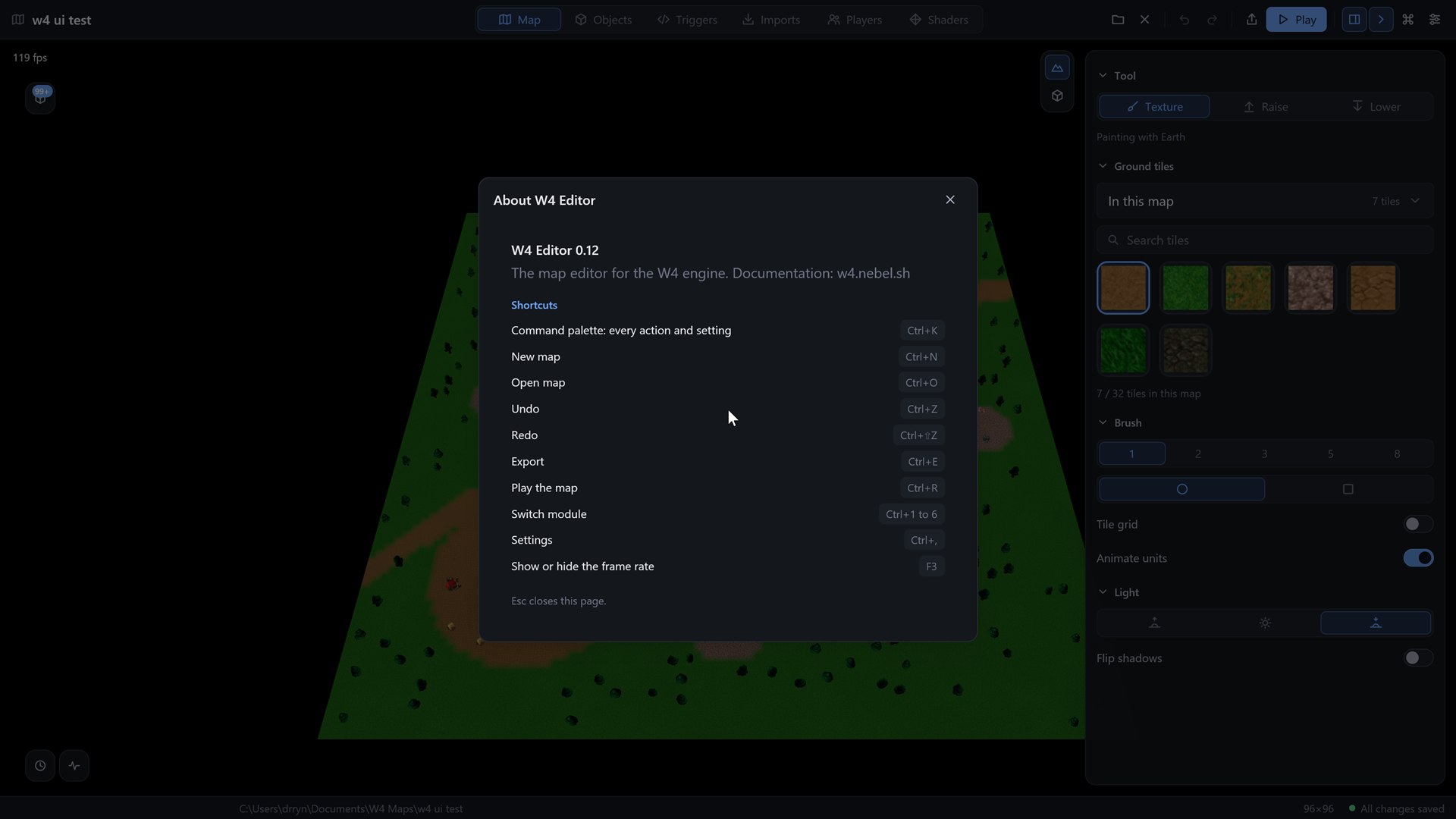
Keyboard shortcuts
| Shortcut | What it does |
|---|---|
| Ctrl K | Open the command palette |
| Ctrl N | New map |
| Ctrl O | Open a map folder |
| Ctrl Shift O | Open a model in the model viewer |
| Ctrl , | Open Settings |
| Ctrl 1 to 6 | Switch to Terrain, Objects, Triggers, Imports, Players, Shaders |
| Ctrl Z | Undo (Terrain and Objects) |
| Ctrl Shift Z | Redo (Terrain and Objects) |
| Ctrl E | Export the map to a .a4m file |
| Ctrl R | Play the map |
| Ctrl Q | Save and quit |
| F3 | Show or hide the frame counter in the 3D view |
| Esc | Close the palette, or cancel the New map dialog |
| Enter | Run the palette entry, or create the map in the New map dialog |
There is no Save shortcut because there is no Save. See Saving and safety.
The mouse and trackpad controls of the 3D view are on the top bar, panels and camera page.