
Imports
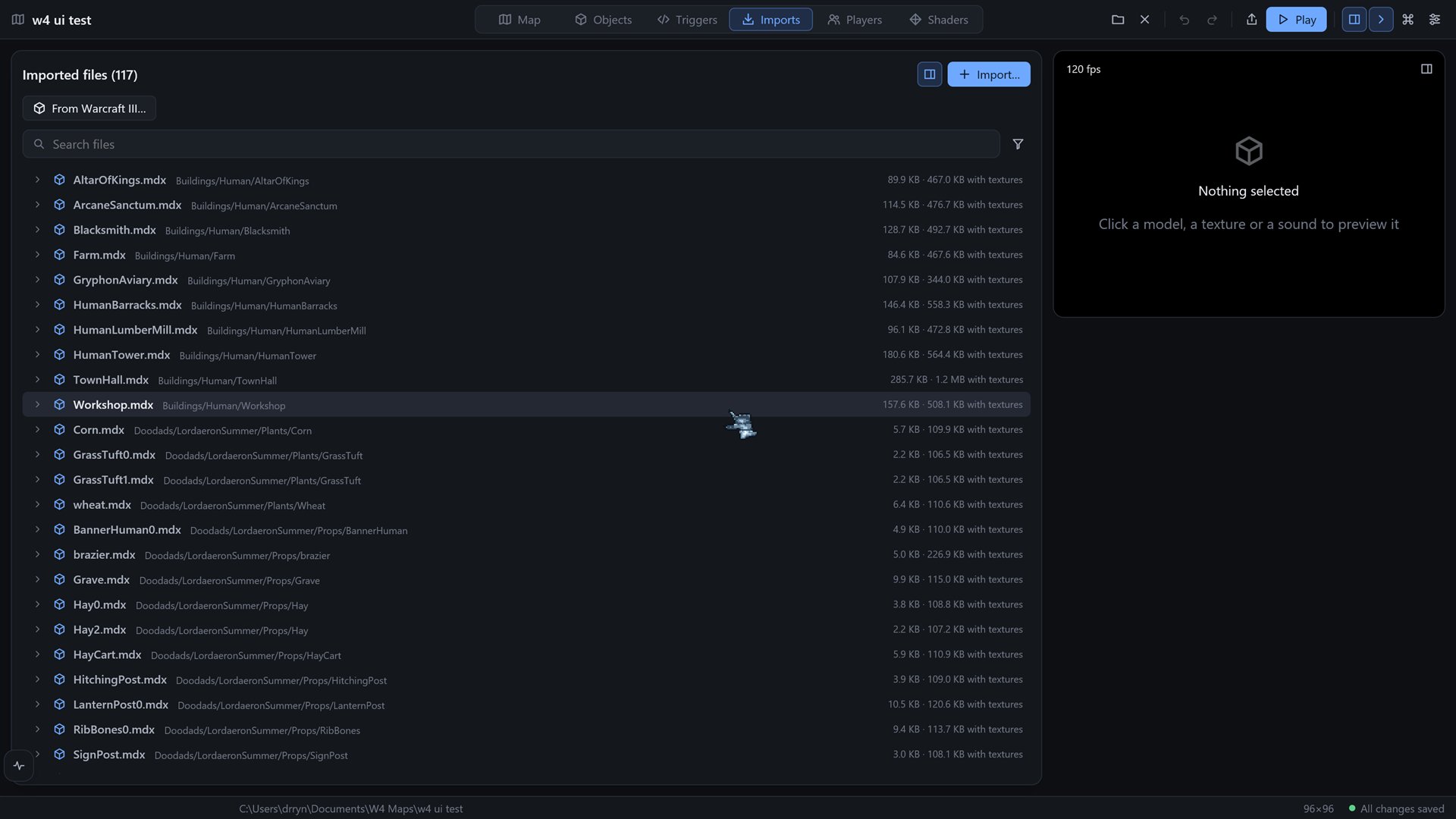
The Imports module (Ctrl 4) manages the map's assets/ folder. That is where models, textures and sounds live. Objects pick their models from here, and models find their textures here.
The module has its own layout. By default the file list takes the middle and a small preview sits at the right, with the controls for what you have selected under it. The button with the panel icon beside the title switches to the other layout: a big preview with the list docked on the right. In the default layout, the small preview has an enlarge button in its corner, and the big one has Back to the list.
What counts as what
The editor sorts files by their extension.
| Kind | Extensions |
|---|---|
| Model | .mdx, .mdl |
| Texture | .blp, .tga, .png, .webp |
| Sound | .wav, .mp3, .flac, .ogg |
| Anything else | listed as an ordinary file |
The list
The title says how many files the map holds. The list shows every model first, each with a small arrow. Unfold the arrow to see the textures that model uses. A texture that two models share shows up under both. After the models comes an Other files group with everything else: textures no model uses, sounds, and so on.
Every row shows the file's size. A model's row also shows its size together with its textures, since that is what the map carries for it.
Above the list:
- The search field. Every word you type has to appear in the path. A model stays in the list if its own name or the name of one of its textures matches, and while you search, the matching textures unfold under it.
- The Unused filter, the funnel icon. It shows only files nothing uses: models that no object definition names, textures no model uses, and every sound and other file. The number of such files is in its tooltip. Sounds count as unused until something plays them, and nothing plays them yet.
Importing files
Import… opens a file picker where you can choose several files at once. (Dragging files onto the window does not work in the editor yet.)
- A file lands in
assets/under its own name. - When you import a model, the editor reads it and brings along the textures it names, if it finds them next to the model, under the path the model uses.
- If the game is installed, textures that are still missing after the import are fetched from the game's archives. More on that below.
- The first model that came in is selected so you can see it.
When the toast appears, the Activity panel has the details: which textures came along, what was skipped, what was renamed.
A file that is already there
If the file is already in the map with exactly the same content, it is skipped and nothing happens.
If it has the same name but different content, the editor keeps both. It gives the new file a name with a short fingerprint of its content, like Footman_1a2b3c.blp, and rewrites the models you just imported so that they use the new name. Nothing already in the map is touched, so models that use the old file keep working. The Activity entry lists each rename. The editor never asks you a question here.
This is what makes it safe to import two models that both bring a texture called Body.blp.
Rename or move
Select a file and press the pencil. A field appears with the file's path inside assets/. Type a new name, or a new folder and name, and press Apply.
- A model that names the renamed texture is rewritten to use the new path.
- Object definitions that use a renamed model follow it. That is one entry in the Objects history, so you can undo it there.
- A sound keeps its gain.
- If a file with the new name already exists, the editor refuses and says so.
The move on disk itself is not undone by Undo. To reverse it, rename the file back.
Delete
Select a file and click the bin. Its tooltip changes to Click again to delete, and the second click deletes. Deleting does not touch the models or definitions that used the file, so check the Unused filter first if you are not sure. A deleted sound loses its gain too.
Previewing a model
Select a model to see it in the preview. Use the mouse to orbit and zoom, as described under camera. The preview controls are:
- Repeat, which loops the current animation.
- Background, four colour dots (dark, grey, light and blue). A black model vanishes on a black background, so pick another.
- The animation list. It is the model's own list of animations, with a play mark. Click one to play it. The model viewer and the Warcraft III picker use the very same list.
If a model names a texture the map does not have, a Fetch missing textures button appears beside the Warcraft III button. Its tooltip counts how many are missing.
Previewing a texture
Select a texture to see it at its own size, or shrunk to fit, on a dark field, with its width and height under it. If it is a WebP, PNG or BLP image, Add as ground tile appears. It adds the picture to the map's ground tiles, up to the limit of 32, and a toast tells you to open the Terrain module to paint with it.
Sounds
Select a sound and the controls show:
- A play or stop button, and the length, sample rate and number of channels.
- A waveform. Any part that would clip at the current gain turns red.
- Peak and RMS levels in dB, and the Gain that is applied.
- Normalise sets the gain so that the loudest sample plays at -1 dB. The file itself is not changed. The gain is stored in
sounds.tomlin the map folder. The button is greyed out when the sound is already at that level. - Reset appears once a gain is set. It plays the file as it is again.
For very long files, the analysis reads only the first ten minutes, and says so.
The engine does not play map sound files yet, so today the gain matters only in the editor. See Sounds in a map.
From Warcraft III…
From Warcraft III… brings in a model, with its textures, from a copy of the game that you own. The models are for testing and for your own maps. The editor reads the game's archives in place and never ships anything from them.
The button opens a box titled Warcraft III models. It can be minimised and closed with the buttons in its header. In it you find:
- A line saying how many models there are and in which folder.
- A search field.
- The list of models, with the file name, the folder inside the archive and the size.
- Click a model to preview it in the 3D view, with the same animation list as above.
- Import with textures copies the model and the textures it needs into
assets/. The same rules as above apply to name clashes, so two game models that bring a texture of the same name both work. - Close.
When the game is not found
The editor looks for the game in several places:
- The
AQUA4_W3_DIRenvironment variable, then the folder you chose before, which it remembers. - The registry, and the usual install folders.
- A quick scan of your disks.
It recognises a copy by the archive names the game reads (War3.mpq, War3x.mpq, War3Patch.mpq and their local variants), whatever the folder is called.
If none of that finds it, a box titled Warcraft III was not found offers three ways forward:
- Choose the folder… Pick the folder where the game is, or a folder that holds it a few levels down. This works for an install, a copy or a disc image. The editor remembers your choice.
- Search this computer looks through every folder on every fixed disk in the background. It shows a live count of the folders it has looked at, and Cancel stops it. If it finds the game, it uses it.
- Get Warcraft III from Blizzard opens Blizzard's page. Install the game, then choose its folder.
Maps made in W4 work without the game. You need it only to import the game's own models.
Fetching missing textures
Models from other places often name the game's own textures. Fetch missing textures looks up every texture that your models name and the map lacks, and copies the ones the game's archives have into the map. It also runs by itself after an import, and stays quiet unless it fetched something. Then a toast says how many, and the Activity panel lists any that were not in the archives.
Not built yet
Folders and custom in-game paths for files, and importing a whole Warcraft III map.