
Objects
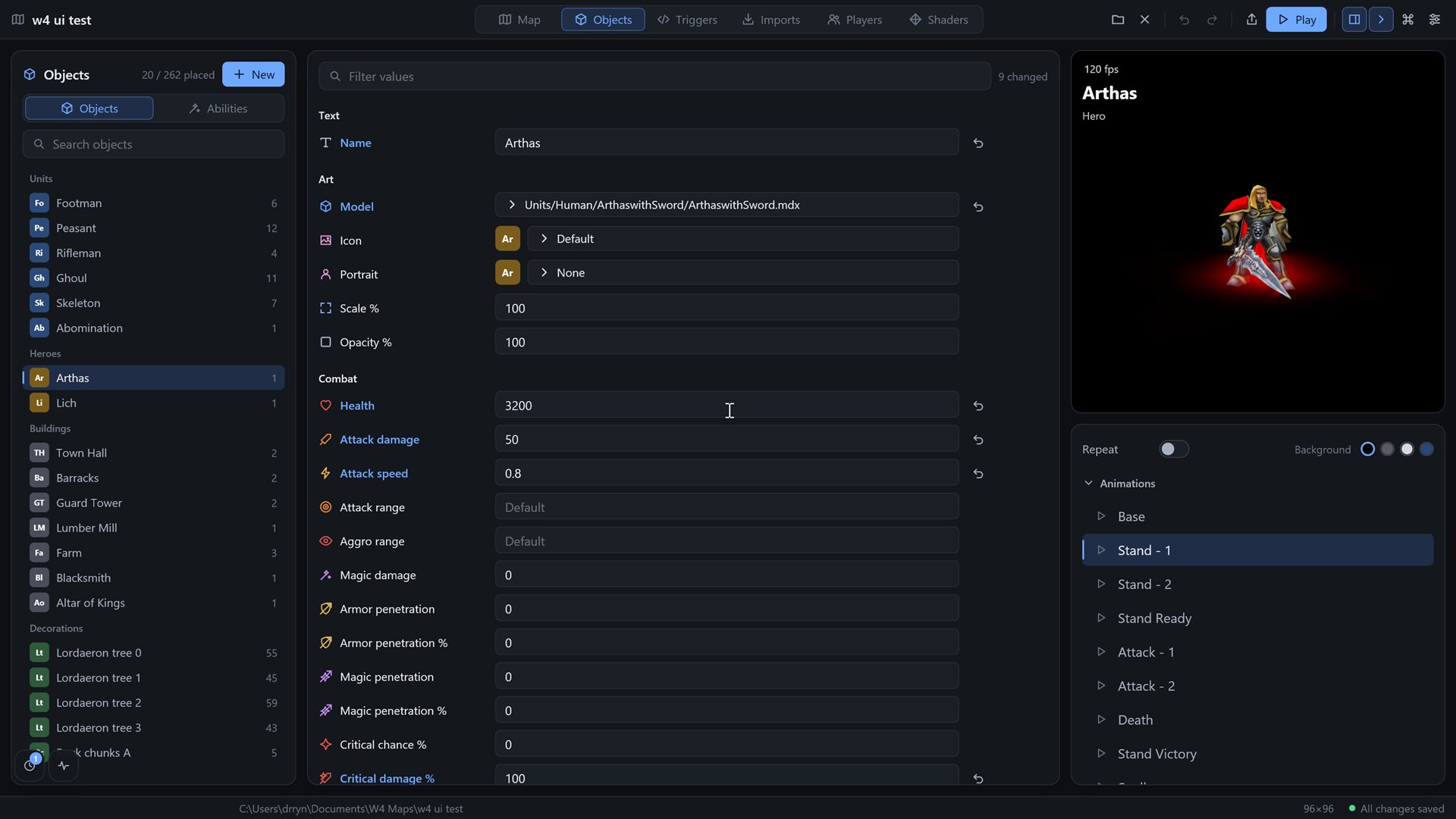
Objects deal with two things. A definition is a kind of thing, like "Footman" with its model and numbers. A placement is one copy of a definition standing on the map, with an owner and a facing. You make the definition once and place it as often as you like. Change the definition and every copy changes.
Tools on the map, and the object editor
Objects live in two places. On the Map (Ctrl 1) the 3D view is the stage, and the tool panel is at its right. A switch beside the panel, Terrain | Objects, chooses which set of tools it shows. With Objects it has a Tool section, an Owner section (the player colours, always at hand), an Objects section with the add buttons, a search field and the list of definitions (each with how many are placed; double-click one to start placing it), and, when it applies, a placement section. The Hierarchy is open at the top left of the view; History is a button at the bottom left. The command palette (Ctrl K) has Group the selected objects, Ungroup the selected group, Select tool and Place tool.
Picking several rows of a list. Every list in the editor where you can pick more than one row (the Hierarchy, the definitions, the imported files) works the same way: a click picks one row, Ctrl (Cmd on a Mac) with a click adds or removes one row, and Shift with a click picks every row between the row you clicked last and this one, in the order the list shows (after the search and the filters, without the rows inside folded groups). Ctrl Shift adds that range to what is already picked. Lists where you only choose one thing (the Warcraft III model picker, the icon and sound choosers, the script list, History) stay single.
Selecting several objects. With the Select tool, drag on empty ground: a green rectangle appears, and every object inside it is selected, as in the game. Shift with a click or a rectangle adds to the selection (or removes a clicked one); a click on empty ground clears it; Ctrl A (or Select all objects in the command palette) selects everything. Dragging one of the selected objects moves them all in one step you can undo, and Del and Ctrl D delete or copy all of them. The Hierarchy highlights every selected row; the Selected panel shows the last one picked.
The object editor (Ctrl 2, or Open the object editor at the bottom of the panel) is a whole view for what an object is. At the left is the list of definitions only, grouped by kind, with the number placed. In the middle is a table of Category - Name | Value rows, like the object editor of Warcraft III: a value that differs from the default of a new definition is shown in the accent colour with a button that puts the default back, and a field above the table filters the rows. At the right the model of the definition is shown large with its animations, and the placed object that is selected. Back to the map returns.
The Hierarchy
The floating Hierarchy panel lists every object placed on the map, newest on top, like the layers of a drawing program. Click a row to select the object in the view, double-click to bring the view to it. A search field filters the list by name, and four buttons under it (Units, Heroes, Buildings, Decorations) show or hide a whole kind, so the trees can be out of the way while you work on the units. Ctrl D (or Duplicate the selected object in the command palette) copies the selected object one tile away.
Groups are for editing only (the game does not know them). Select an object, Ctrl-click or Shift-click more rows to tick them, then press Group. The objects now sit under a group row with a folder icon, and dragging any member in the view moves the whole group. Click the group row to pick it (a name field appears to rename it), click it again to fold or unfold it. Ungroup dissolves the picked group, or the group of the selected object; the objects stay where they are. A group with fewer than two members dissolves by itself. A group is one level deep, and typing a position moves only that object.
Tools
| Tool | What it does |
|---|---|
| Select | Click an object in the view to select it. Drag it to move it. Click empty ground to deselect. |
| Place | A copy of the selected definition follows the pointer. Each click puts one down. |
Place needs a definition. It is unavailable while the list is empty.
The list of definitions
The four buttons at the top of the section, Unit, Hero, Building and Decoration, each add a new definition of that kind, named New unit, New hero and so on. The list below is grouped by kind. Click a name to select it. The search field filters by name.
Definitions
Which fields you see depends on the kind.
| Field | Kinds | Meaning |
|---|---|---|
| Name | all | What the list and scripts call it. Up to 40 characters. |
| Model | all | A model from the map's Imports. Click the button to open a searchable list of imported models. (none) shows a grey box. |
| Scale % | all | Size of the model. 100 is as made. From 10 to 1000. |
| Health | unit, hero, building | Hit points. |
| Attack damage | unit, hero, building | Damage per hit. |
| Attack speed | unit, hero, building | Attacks per second, from 0.1 to 10. |
| Sight (tiles) | unit, hero, building | How far it sees, which clears the fog of war around it. Empty means the default of the kind: 10 for a unit, 12 for a hero, 9 for a building. Up to 40. |
| Attack range | unit, hero, building | How far from its target it attacks, in distance units. A tile is 128 units. Empty means 150, a little over a tile, which is melee. Up to 1280. |
| Armor, Magic resist | unit, hero, building | Damage taken is multiplied by 100 / (100 + resist): 100 armour halves physical damage. |
| Magic damage | unit, hero, building | Extra magic damage on every hit, on top of Attack damage (which is physical). Magic resist reduces it. |
| Armor penetration, Magic penetration (flat and %) | unit, hero, building | Lower the target's armour or magic resist before the damage is worked out: the percent first, then the flat amount, never below zero. |
| Icon | all | The picture that stands for the definition in the palette tiles and the inspector: pick an imported PNG or JPEG. Empty shows a coloured badge with the kind's icon colour and the name's initials. Every row of the table has its own coloured icon (a heart for health, a sword for damage, a coin for cost). |
| Hit sound | unit, hero, building | The sound of its blows: None, Slash, Blunt, Pierce, Claw or Magic. The play button next to it tries it. Empty means Slash for a unit or hero that can attack, otherwise none. |
| Volume % | unit, hero, building | How loud the hit sound plays. Empty means 100. Up to 200. |
| Gold cost | unit, hero, building | What training or building it costs. |
| Build time (s) | unit, hero, building | Seconds to train or build it. From 1 to 600. |
| Trains | building | The units and heroes this building can train, in the order of the command card. |
| Builds | unit, hero | The buildings this unit can place. |
| Abilities | unit, hero | The abilities it can cast, in the order of the command card. A list with check marks, like Trains. The abilities themselves are made in the Abilities category (below). |
| Move speed | unit, hero | Distance units per second. |
A decoration has only name, model and scale. It is scenery.
The hit sounds are made in code by the engine, so they need no sound file. They are separate from the sounds you import.
Numbers you type that fall outside a range are pulled back into it. A box that holds half a number, or nothing, leaves the old value alone, except for the fields marked empty means… above, where clearing the box goes back to the default.
New definitions start with sensible numbers. A unit has 100 health, a hero 500, a building 400.
Trains and Builds are lists with check marks. Click a row to add or remove it. The button shows how many are chosen.
Deleting a definition
Delete asks you to click a second time, and while it waits it tells you how many placed copies would disappear with it. Deleting a definition removes all its placements. It goes into the History, so Undo brings it back.
Abilities
The object editor has two categories, switched at the top of its list: Objects and Abilities. Press New in the Abilities category to make one; the command palette has New ability, Show the abilities and Show the units, heroes and buildings.
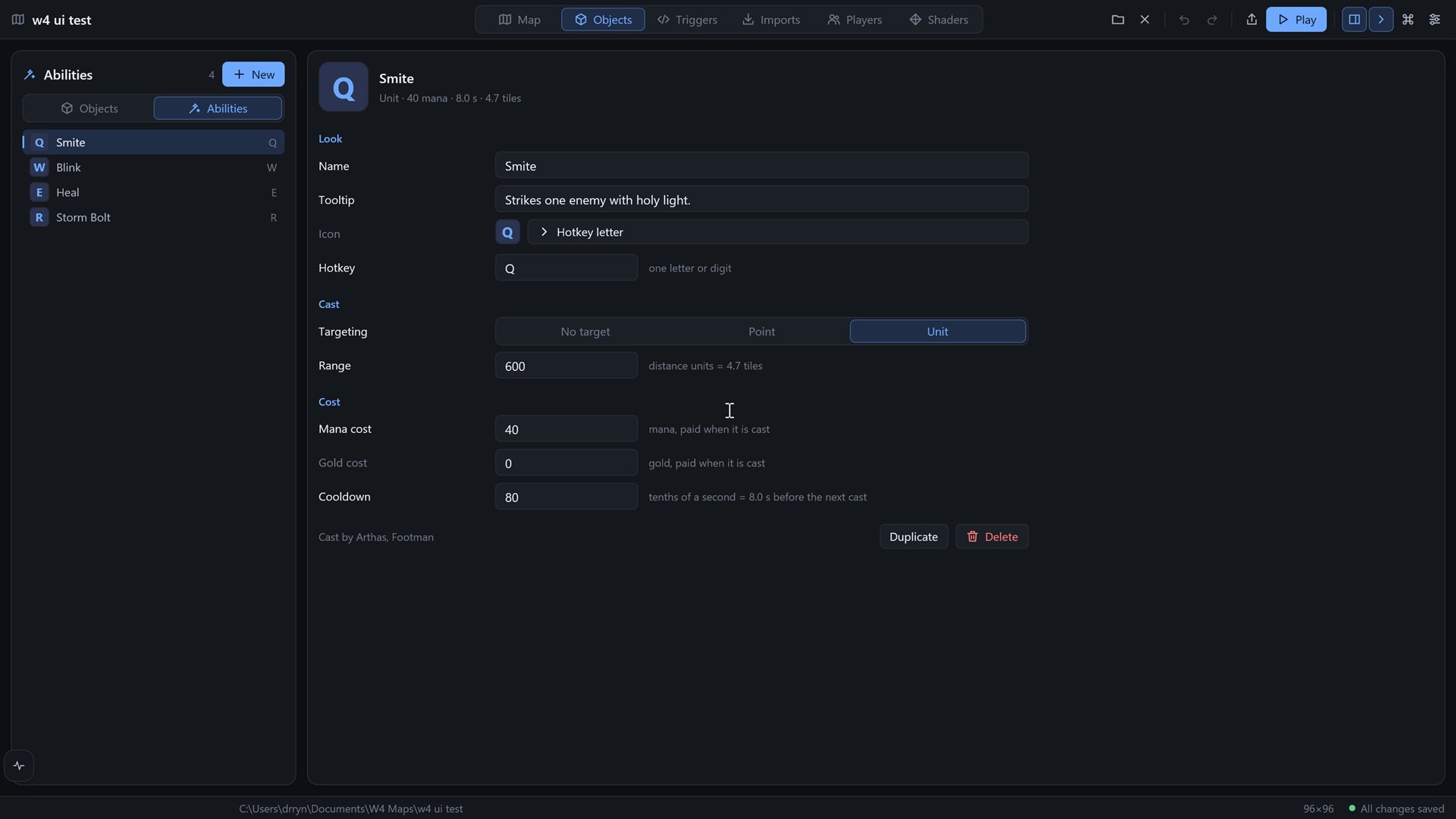
An ability is data: what the player sees and what it costs. What it does when cast is done by the game rules or by a script, and casting always goes through the game's commands, so it works the same in multiplayer.
| Field | What it is |
|---|---|
| Name | The name shown in the tooltip. |
| Tooltip | The text of the tooltip. |
| Icon | A picture from your imported assets. With no picture, the command card shows the hotkey letter as the icon (a Q ability is a big Q). |
| Hotkey | One letter or digit that casts it. |
| Targeting | No target (cast at once), Point (a spot on the ground) or Unit. |
| Mana cost, Gold cost | Paid when it is cast. |
| Cooldown (1/10 s) | Tenths of a second before it can be cast again; 50 is five seconds. Up to 600 s. |
| Range | How far it reaches, in distance units (128 to a tile). 0 is where the caster stands. |
Effects
The Effects group says what the cast does, so a simple spell needs no script. Reaches picks whose units it hits: Enemies, Allies or Everyone. Add effect puts one of four kinds on the list (up to six), and each row has its own kind chooser, numbers and a bin button:
| Kind | Numbers |
|---|---|
| Damage | An amount and a type: Physical (armour reduces it), Magic (magic resist reduces it) or True (nothing reduces it). |
| Heal | An amount of health given back, up to the unit's most. |
| Stun | Tenths of a second the unit does nothing (20 is two seconds). |
| Slow | A percentage from 1 to 100 and tenths of a second. |
A unit-targeted ability hits its target; a point or no-target ability hits the units inside its shape. Projectile speed (distance units per second) makes a bolt carry the effects: it leaves after the cast time and the effects land where it arrives; 0 lands them at once. A line under the list sums it up ("Hits enemies in the circle: 200 magic damage, stun 2.0 s"). Effects are saved in objects/abilities.toml and play the same on every machine, so they work in multiplayer.
The picture at the top of the table is how the command card will draw it. Duplicate copies an ability; Delete asks twice and takes it off every unit and hero that had it. Abilities are saved in objects/abilities.toml (map format 11); an older map opens with none.
Items
The third category, Items, holds the things a hero can carry and a shop can sell. Press New to make one. The command palette has New item and Show the items and shops.
An item is data. The simulation does what it says (docs/ITEMS-PLAN.md); the editor only fixes the numbers, so it plays the same on every machine and in multiplayer.
| Group | Field | What it is |
|---|---|---|
| Look | Name, Tooltip, Icon | Shown in the shop and the inventory. The icon is a picture from your imported assets; with none, the item shows its first letter. |
| Price | Cost, Sell-back | Gold to buy it, and the percent paid back when it is sold (the page shows the gold that makes). |
| Stats while carried | Health, Mana, Damage, Armor, Magic resist | Flat amounts added to the carrier. |
| Use | Ability, Charges | The ability the item casts when used (any ability of the map, or none for a passive item), and how many uses it has when bought; 0 is permanent. |
| Sold by | Shops | Buildings as chips: click one to make it sell the item. Below the chips a table has one row per selling shop with In stock (how many it keeps at a time, 0 is unlimited) and Restock (tenths of a second until one more is made, 0 never). |
A line under the name sums the item up ("75 gold · casts Heal · 3 charges · sells for 37 gold"). Duplicate copies an item; Delete asks twice and takes it out of every shop. Deleting an ability or a building cleans up the items and shops that used it, so no dangling reference stays. Items and shops are saved in objects/items.toml, which a map without items does not have.
Placements
When you select a placed object, or when the Place tool is active, a section appears at the bottom of the panel. It says Placed object or Next object placed.
For a selected object it shows the object's name, an Edit definition button that jumps to its definition, and its position in tiles.
Both versions show:
- Owner. A row of colour squares: players 1 to 12, then neutral passive (does not attack) and neutral hostile (attacks players). Hover a square to see who it is. The colours come from the Players module. With an object selected, a click changes its owner. Otherwise it sets the owner of the next object you place.
- Facing. The angle in degrees, with two turn buttons. Each click turns by 15°. 0° faces east, 90° north, and 270° south. New objects face 270°, towards you in the default camera.
- Delete object (for a selected object). One click removes it. It is in the History, so Undo brings it back.
Moving an object by dragging is one History entry, however long the drag.
If a model cannot be shown, the Tool section lists it in red.
History
The floating History panel lists every change in this module: placing, moving, deleting, owner and facing changes, and edits of definitions. Newest is first. Click an entry to jump to that point. Entries after it are dimmed. A search field filters the list.
Typing a number into a field makes one entry, not one per digit. Edits of the same field within two seconds are merged.
Undo and Redo in the top bar walk through the same list. It is separate from the Terrain history.
Animation
Placed units play their idle animation in the view. The Animate units switch (in Settings and in the Terrain module) turns that off.
Not built yet
Copy and paste, folders for definitions, groups inside groups, and moving a single member of a group by dragging.