
Shaders
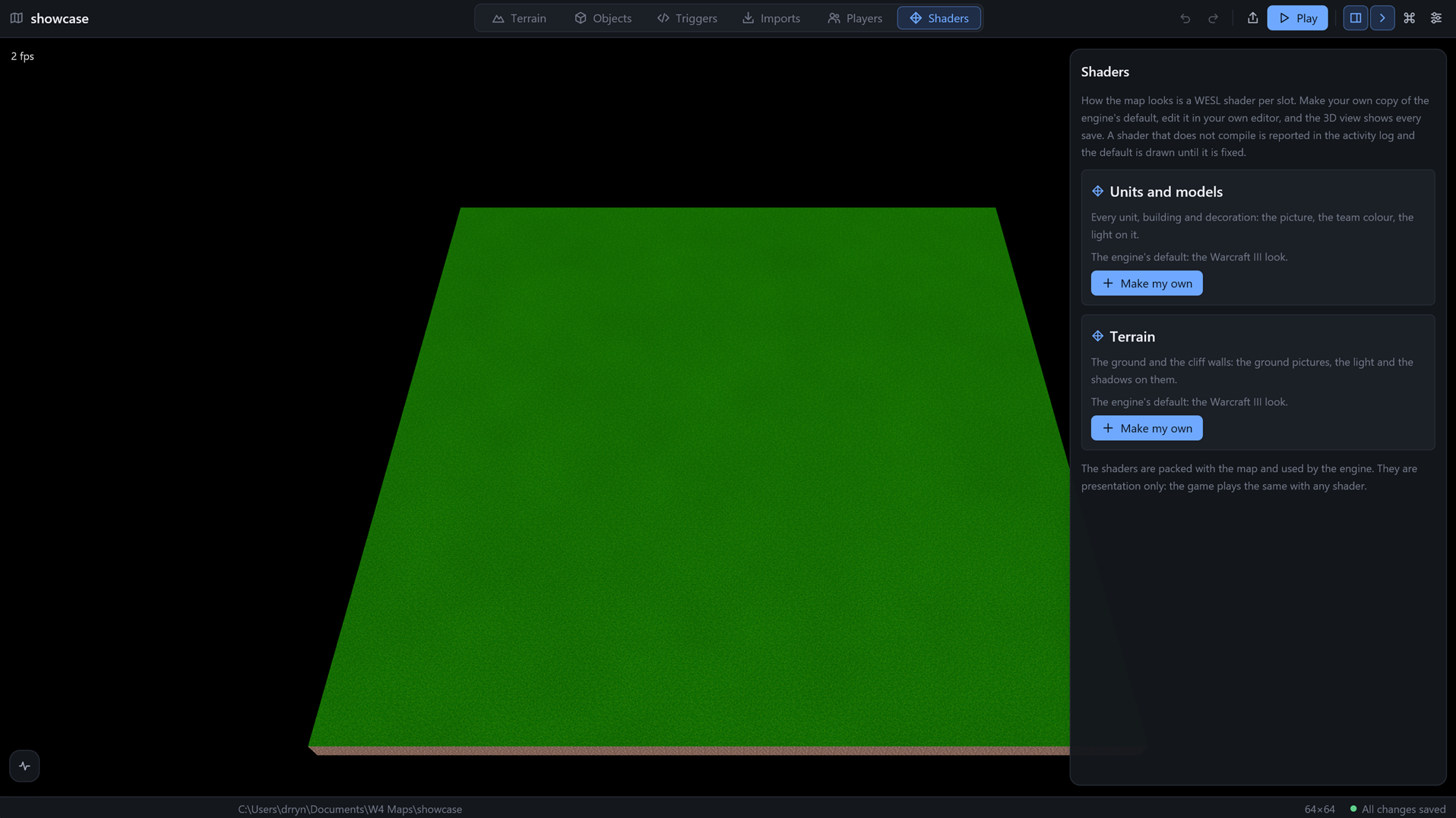
A shader is the small program that decides how something is drawn. By default W4 draws units and ground in the Warcraft III look. In the Shaders module (Ctrl 6) you can give your map its own look instead.
The map has two slots, each with a card:
| Slot | What it draws | File |
|---|---|---|
| Units and models | Every unit, building and decoration: the picture, the team colour, the light on it | shaders/unit.wesl |
| Terrain | The ground and the cliff walls: the ground pictures, the light and the shadows on them | shaders/terrain.wesl |
The shaders are written in WGSL (the files keep the .wesl name). A map's file is a whole copy of the engine's default, so it has everything the default has: the entry points vs_unit, fs_unit, fs_mask, fs_blend and fs_shadow_mask for units and vs_terrain and fs_terrain for the ground. They only change how things look. The game plays the same with any shader.
The Look card
At the top of the panel the Look card chooses between two looks of the engine's default shader:
- Warcraft III (the default) lights the world the way the game does: one sun plus ambient light, with the numbers of Lordaeron at noon, models and ground each with their own ambient light, light that never gets brighter than the picture. Flat ground shows its picture almost as it is; slopes facing away from the sun, and the backs of models, go dark and slightly red.
- Classic is the softer white light W4 used before.
The choice shows at once in the 3D view. For the game, the same two looks exist as AQUA4_LOOK=warcraft3 or AQUA4_LOOK=classic. How each rule was found is in docs/WC3-LOOK.md in the repository.
A slot's card
Each card shows where the slot stands:
- The engine's default: the Warcraft III look. The map has no file of its own for this slot.
- The file name, its size and when it last changed, with a green check. The map uses it.
- A red cross, the file name and does not compile; the default is shown, with the compiler's message under it.
And it has buttons:
- Make my own copies the engine's default shader into the map's
shaders/folder and opens it in your code editor. It is the best place to start, since a working shader is easier to change than a blank file. It only shows while the slot has no file. - Open in editor opens the file again. The editor is the one set under Code editor in Settings.
- Back to the default deletes the map's file, after a second click, and the engine's default is used again.
Live preview
The 3D view watches the map's shaders/ folder in every module, not only here. Save the file in your editor and the view shows the change within about half a second.
If a shader does not compile, the toast and the Activity panel carry the compiler's message, once per error, and the view keeps drawing with the default until you fix it. When it compiles again, you get a toast for that too. In the game, a shader that fails falls back to the default in the same way.
The shader files are packed into the exported .a4m with the map.
The shaders tutorial walks through a first change.
Not built yet
An effects slot, vertex shaders and ready-made starter looks.