
Settings
Ctrl , (Cmd , on a Mac) opens the settings window. So do the cog in the top bar and the cog in the corner of the welcome screen. It is a window of its own, so you can leave it open beside the editor. Everything you change takes effect and is saved at once. There is no OK button.
The window has two tabs on the left, Editor and Map.
Editor
These belong to your computer and apply to every map.
| Setting | What it does |
|---|---|
| Language | English or Russian. English is complete. Russian is there, but most of it still shows English. |
| Show the tile grid | Draws the grid over the ground. Same switch as in the Terrain module. |
| Animate units in the map view | Placed units play their idle animation. Switch it off on a slow computer. |
| Viewport quality | Auto, Full, Balanced or Low. Lower settings use less memory and power. Low suits old computers. Auto picks from the graphics card. |
| Frame rate | The most frames a second the 3D view makes: 60 or 120. 120 is offered only on a screen faster than 60 Hz, and is the default there. The editor's own interface is not capped: it is drawn at your screen's refresh rate. |
| Play a fanfare at start | The short sound when the editor starts. Quiet, Medium and Loud set the volume, and Play now lets you hear it. |
| Code editor | The program that opens your scripts and shaders. See below. |
The code editor command
The Triggers and Shaders modules both have an Open in editor button. The command in this field decides what it starts. For example code, zed or subl.
- By default the editor gives the program the scripts folder first and the file second, the way those three editors expect. When you open a shader, there is only the file.
- To control the order, write
{dir}and{file}where they should go, for examplemyeditor --folder {dir} --open {file}. - Leave the field empty and the editor tries
zed,codeandsublon your PATH, and then asks the system for its program for the file type.
Try it opens a small test Go file with your command, so you can check it works.
Map
This tab needs an open map. Without one it says Open a map to change its settings. The settings are saved in the map's map.toml.
| Setting | What it does |
|---|---|
| Map | The name, the size in tiles and the folder. Shown for reference. |
| Light | Morning, Noon or Evening, and Flip shadows. Same as the Light section of the Terrain module. |
| Playable area | How many tiles at each edge, left, bottom, right and top, lie outside the playable area. Use the − and + buttons. The area must stay at least 8 by 8 tiles, so a value that would leave less is refused. |
| Fog of war | Switches fog of war on or off. When it is off, everything is visible at all times. |
| Black mask (unexplored is black) | With the mask on, ground nobody has seen is black. With it off, unseen ground shows dimmed, like explored ground, so you can always see the terrain. Other players' units are still hidden where nobody sees them. |
| Loading picture | The picture shown behind the loading screen of this map. The group has a preview, the chosen file's path (assets/<file> in the map), Choose from imports (a list of the PNG, JPG and WebP files already imported), Import a picture… (copies a file into the map's imports and chooses it; a different file of the same name is kept next to the old one) and Clear. Also in the command palette: Loading picture of the map…. A map without one has the usual loading screen. |
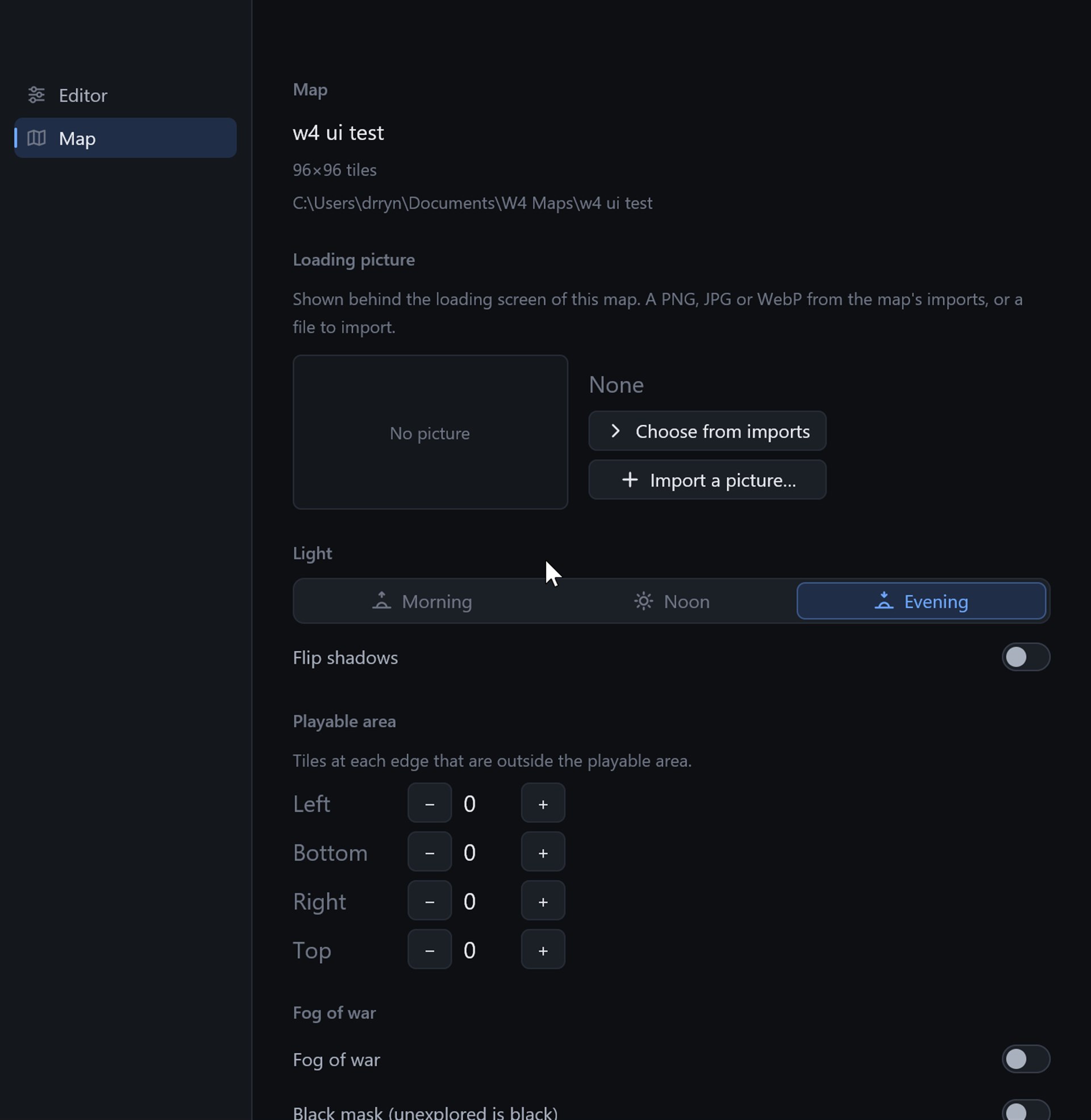
New maps start with fog on and the black mask off and no loading picture.
Where the editor keeps its settings
The editor settings are in settings.toml in the editor data folder.