
Start screen and lobby
Start screen
Run w4-engine without a map and you land on the start screen: a night landscape that drifts slowly, with music that the engine makes itself. The version of the engine is in the bottom right corner.
There are four buttons.
| Button | Does |
|---|---|
| Play a map | Opens the map list. |
| Settings | Opens the settings. |
| Credits | Shows the version, who made W4 and what it is built with. |
| Quit | Closes the engine. |
Esc goes back one screen. In the settings it also throws your changes away, like Cancel.
If you start the engine with a map (w4-engine my-map or the editor's Play), you skip all of this and go straight to the loading screen. You play as player 1, with the teams the map's author set.
Choosing a map
The list has two sources. The first is the folder Documents/W4 Maps in your home folder: every folder with a map.toml and every .a4m file in it, sorted by name. The second is the editor's list of recent maps, for the maps that are not in that folder already.
The list shows eight maps at a time. Scroll it with the mouse wheel. The map you played last time is picked for you.
The map picker is a list on the left with a search field, filter chips and a count, with each map's size as a chip. The right side shows the picked map: its picture (the map's own loading picture when it has one, otherwise a drawn preview), its name and facts, the player you play as, and the gold Start button. Start waits until a map is picked. Back is at the top right.
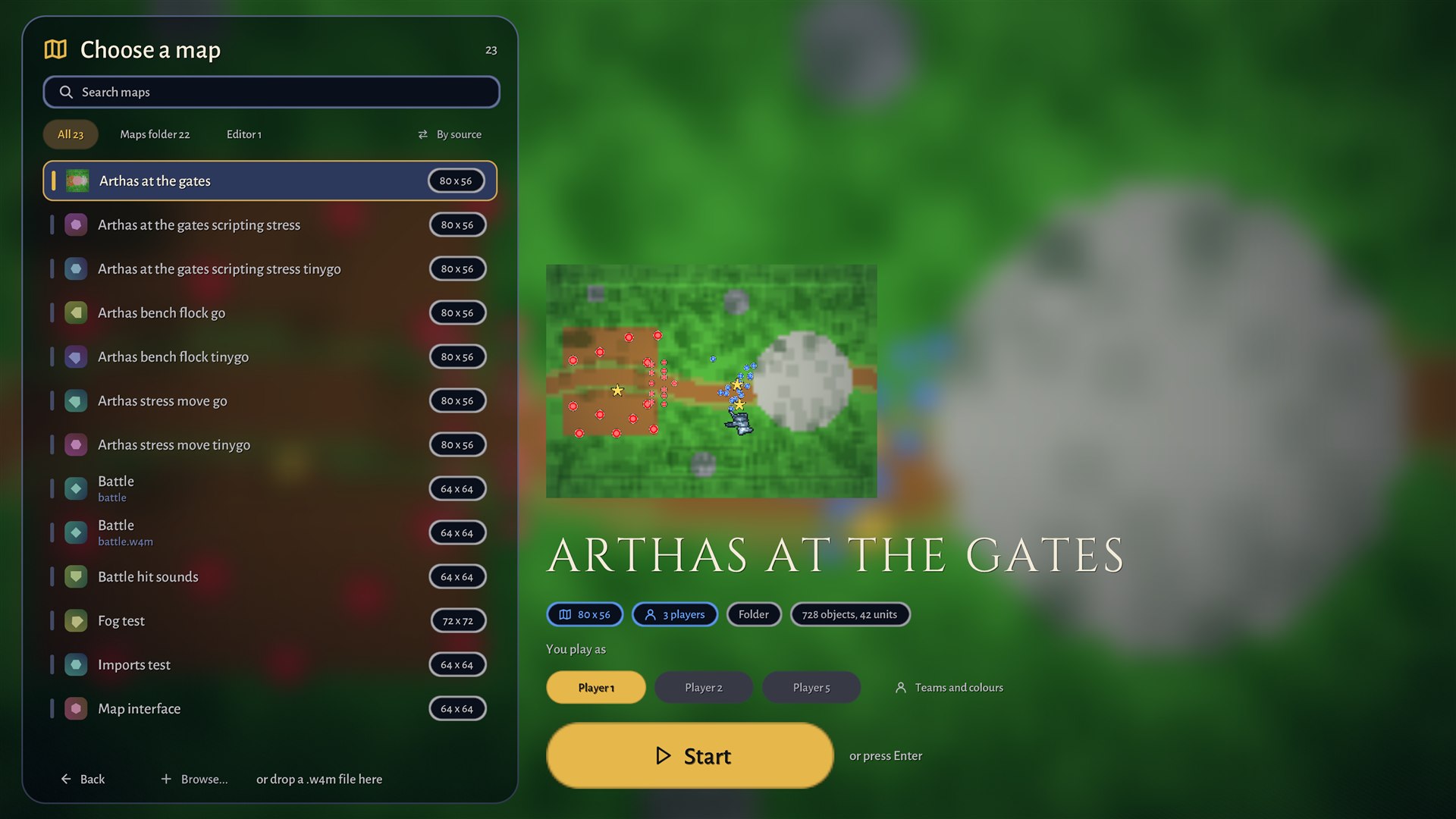
Click a map to see its details on the right:
- the name and a small picture of the terrain, with the units drawn in their owners' colours,
- the size in tiles,
- how many objects the map has, and how many of them are units and buildings,
- how many players own something,
- the
descriptionfrommap.toml, if the map has one (long text is cut at 220 characters), - whether it is a package or a folder, and where the engine found it.
If a map cannot be opened, the panel says why, for example that the file is damaged or was saved by a newer W4.
The buttons under the list:
| Button | Does |
|---|---|
| Start | Loads the picked map. |
| Players | Opens the Players page for this map. |
| Browse... | Opens your system's file dialog for a .a4m file. The map you pick is added to the top of the list. |
| Back | Returns to the start screen. |
You can also drop a .a4m file on the window. That starts the map at once, skipping the Players page. If you chose players for that map before, the engine uses your choice. If not, you are player 1 and every player is on a team of their own.
Players page
Open it with Players on the map list. It shows a row for every player that owns a unit on the map, and always player 1.
Each row has the player's colour and name, a Team button, a Play as this button and a word on the right.
- Team counts up with each click: team 1, team 2, and so on, up to the number of players, then back to 1. Players on the same team are allies and never fight each other. Everyone else is an enemy.
- Play as this makes that player yours. You then see and select what that player owns, and you start with that player's gold.
- The word on the right says You, Ally or Enemy, seen from your chosen player.
The list starts from what the map's author set in the editor's Players module. Your changes are remembered per map in menu.toml, next to engine.toml, so the next time you pick the same map your choice is still there. Done takes you back to the list. The players and teams tutorial shows both sides of this.
Gold starts at the map's start gold for every player.
Loading
A map can choose its own loading picture (Map settings in the editor: Choose from imports, Import a picture, or Clear). The game shows it blurred behind the loading screen, and the picked map's room uses it as the backdrop too. A map without one uses its terrain picture. The picture must be a png, jpg or webp inside the map's assets folder, at most 4096 pixels on a side; anything else is ignored.
While the map opens you see its name, the picture of its terrain, a progress bar with a line saying what is going on (preparing, loading terrain, loading models and units, building the scene), and one hint about the controls.
When it is done the bar says Click or press any key to start, and the game waits for you. The clock does not run until you click. Esc does not start it, so you cannot close the screen by accident.
Older maps
A map saved by an older W4 is migrated in memory when the game starts. Nothing is written to the map. The summary and the notes about what was filled in appear in the message log (F12). A map saved by a newer W4 is refused, with the version that made it. See maps and files.
Not built yet
A lobby with computer players, joining other people's games and a result screen come with networking.