
The interface
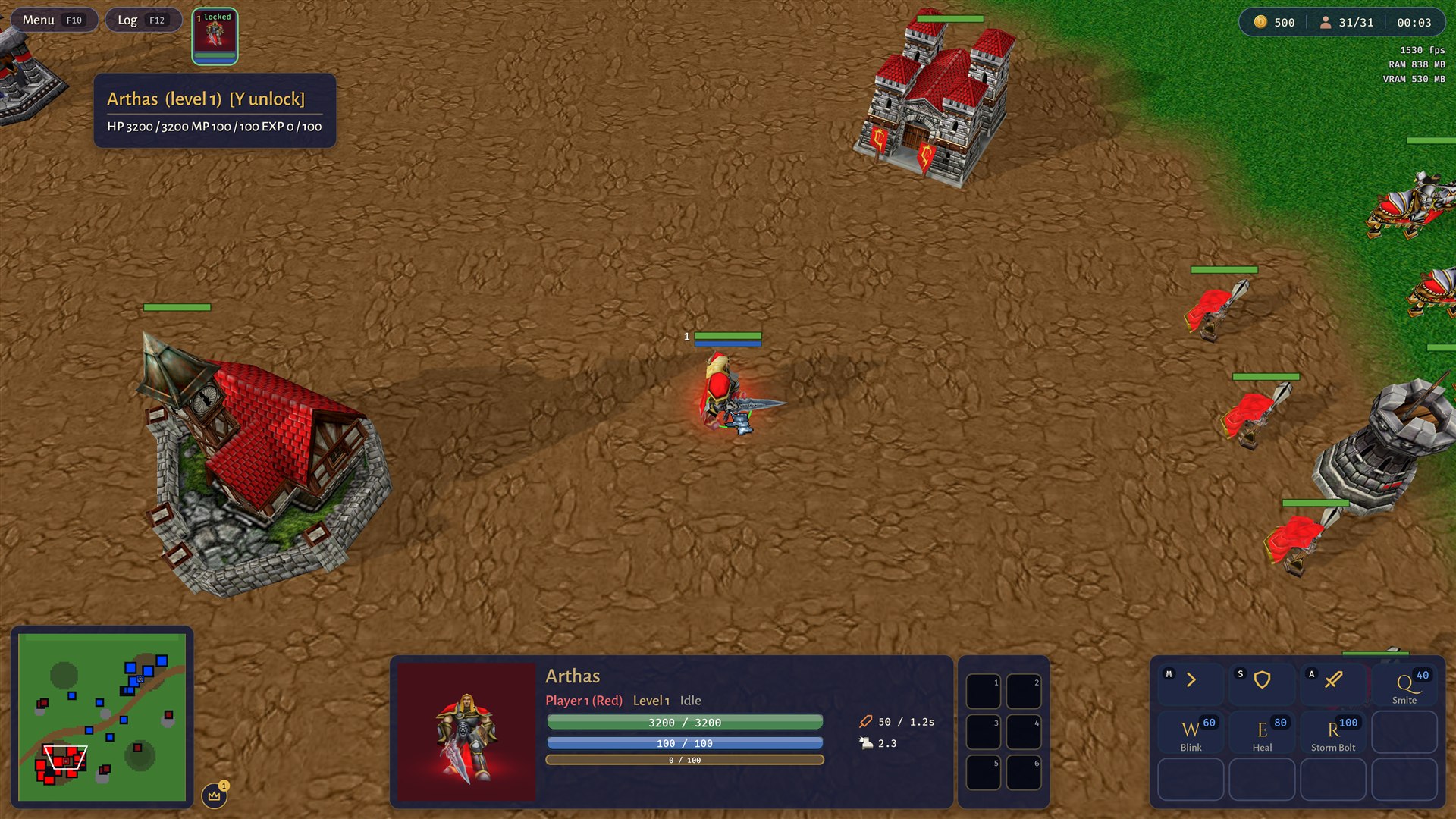
The panels are flat and dark with a thin warm border, and the engine draws them itself (see the interface for why). They are laid out for a window 1080 pixels high and scale with the window height, so they keep their proportions at any size.
While the pointer is over a panel, a click belongs to the panel and not to the map behind it. The mouse wheel over the log window scrolls the log instead of zooming.
Top bar
A bar across the top of the window.
- Menu and Log buttons at the left. The key of each is written on the button (F10 and F12 by default).
- The game time in a round orb in the middle, as minutes and seconds. It starts at 00:00 when you click through the loading screen and stops while the game menu is open.
- The frame rate, left of the gold. This is the debug overlay in its compact mode.
- Gold, with a tooltip. It is your gold right now.
- Units, written as
alive/all: the units still alive, and all the units that started on the map. Hover for the tooltip.
Minimap
At the bottom left. One pixel stands for one tile of the map, with the north up.
- Ground in the terrain's colours, a little lighter on higher cliff levels.
- A dot for every living unit you can see, in its owner's colour. Buildings are bigger dots.
- A white rectangle for the part of the map the camera shows.
- A thin light green line for the path of each selected unit.
- Fog: black outside the playable area, dimmed on ground you saw and left, darker still on ground you never saw.
It redraws five times a second.
| Action | Does |
|---|---|
| Left click or drag | Moves the camera there. |
| Right click | Orders the selected units to move there. |
| Alt click | Pings that place for your team (below). |
| N | Hides or shows the minimap (rebindable). Tab is the players overlay. |
How big the minimap is, you set with a slider in the settings. The chat and the message log sit above it and follow its size.
Pings
Alt and a click on the minimap puts a pulsing ring on the minimaps of your team, in your colour, for three seconds. It does not move your camera. Only players on your team see it.
Unit panel
At the bottom centre, with a selection only.
- A portrait: the unit's model, turning a little from side to side.
- The unit's kind (unit, hero, building), the owner in the owner's colour, and what it is doing: Idle, Moving, Attacking, Building, Training with the unit's name and a percentage, Under construction with a percentage, or Dead.
- A health bar with the numbers. It goes green, yellow and red as the health drops.
- Two stats with an icon, shown for one unit that has them: Attack (damage and seconds between blows) and Speed (tiles a second). Hover for the tooltip.
- A row for status icons. It stays empty, because there are no buffs or debuffs yet.
- For a hero: Level n next to the owner, and a blue mana bar under the health. Every hero has a pool of 100 mana for now. Mana is not spent or regained yet.
- With several units selected, the name becomes "n units selected", the stats go away, and one small cell per unit appears, coloured by that unit's health. The panel shows up to 12 cells. Click a cell to keep only that unit; Shift click takes it out of the group.
Command card
At the bottom right, four slots across and three down. It shows only what the first selected unit of yours can do. With nothing selected, or with an enemy selected, it is empty.
- A unit that walks gets Move and Stop. A unit that can hit gets Attack. Each slot shows the hotkey.
- If the definition trains or builds things, they start in the second row: the unit or building name and the gold it costs.
- A building that is still being put up gets no slots.
- Hover a slot for a tooltip. Orders say what they do. Training and building entries show the cost in gold and the time in seconds.
- The slot of an order that waits for your click is lit. Press it again, or its key, to cancel.
A hero's ability slots show the ability's icon, or its hotkey letter when it has no icon, the mana cost in the corner and a veil that sweeps clockwise while it recharges. Empty slots stay as quiet outlines so the grid never moves. Pointing at a slot, or at the hero button, opens the shared tooltip: one glass card with a pointer, the name, the key and the numbers. It is the same card everywhere in the game.
How training and building work is on the controls page.
Hero bar
At the top left, under the top bar. One card for each of your heroes, alive or dead: the first letter of the hero's name in the owner's colour, a health bar, a thin mana bar and the level in the corner. The border is the owner's colour. A selected hero gets a light border, and a dead one a grey border and a darker card.
A click on a card selects the hero. A second click within half a second moves the camera to it.
Inventory
Six numbered slots, two across and three down, to the left of the command card. They show when exactly one hero is selected. They are empty, because items do not exist yet.
Allies and quests
A column at the right, under the top bar. Each panel appears only when it has something to show.
- Allies lists your teammates that own at least one unit, with their colour, name and gold.
- Quests lists what the map's script put up with
ui.Quest: a title, an objective line under it, and (done) in green or (failed) in red.
Chat and message log
The chat line opens above the minimap with Enter. Above it are the last six lines of the log. They fade out after about nine seconds. The chat page explains channels and commands.
There is one stream of messages with two views. The ambient view is the quiet lines above the console: small, no boxes, each fading out. The expanded view is the same stream as a larger panel. Each line starts with a tag or a speaker: a chat line shows the channel and the speaker's name in their colour, and a script's developer notes show a small amber bug chip (hover it to see whether the note came from the map's script or the engine), (WARNING) in amber or (ERROR) in red before plain text. The setting Debug messages in the stream hides the chips' lines above the console; the log keeps them. A script can colour part of a line with [#RRGGBB] and [/]; the engine cleans that text, so it can never pass as a chat tag or a system line. The two views never change the game, and in a multiplayer game they are only what you are allowed to see.
To see more of it, click the lines, press the Log button, or run Open chat history from the command palette (Ctrl+K). The stream grows into a glass panel on the left of the screen, newest at the bottom, scrolling with the mouse wheel. It keeps the last 500 lines. Chips above the history choose the view: All, Team, Events, System and Debug (a developer's view: debug, warning and error lines from scripts). Ctrl+F (or Search messages in the palette) types a search; Esc clears it. F12 opens the same panel on the Debug chip while the debug overlay setting is on. The stream holds:
- the engine's own lines, such as "The battle begins." and a line each time a unit is slain,
- finished buildings,
- anything the map's script prints,
- notes from migrating an older map,
- chat, with a channel tag and the speaker's name in their colour.
Close or the key closes it again. The button and the palette entry read History; it is the same stream, not a second log.
Spectating (in progress)
A spectator's screen has no command card. A switcher pill at the top lists the players with their colour, gold and army (click one to follow); See all lifts the fog; a SPECTATING tag and a LIVE chip show how far behind real time you are, with Jump to live when you fall back. Today this only runs as a demo on the player's own machine, and it is switched off in a joined game. Real spectating needs the server's feed (see online).
The game menu
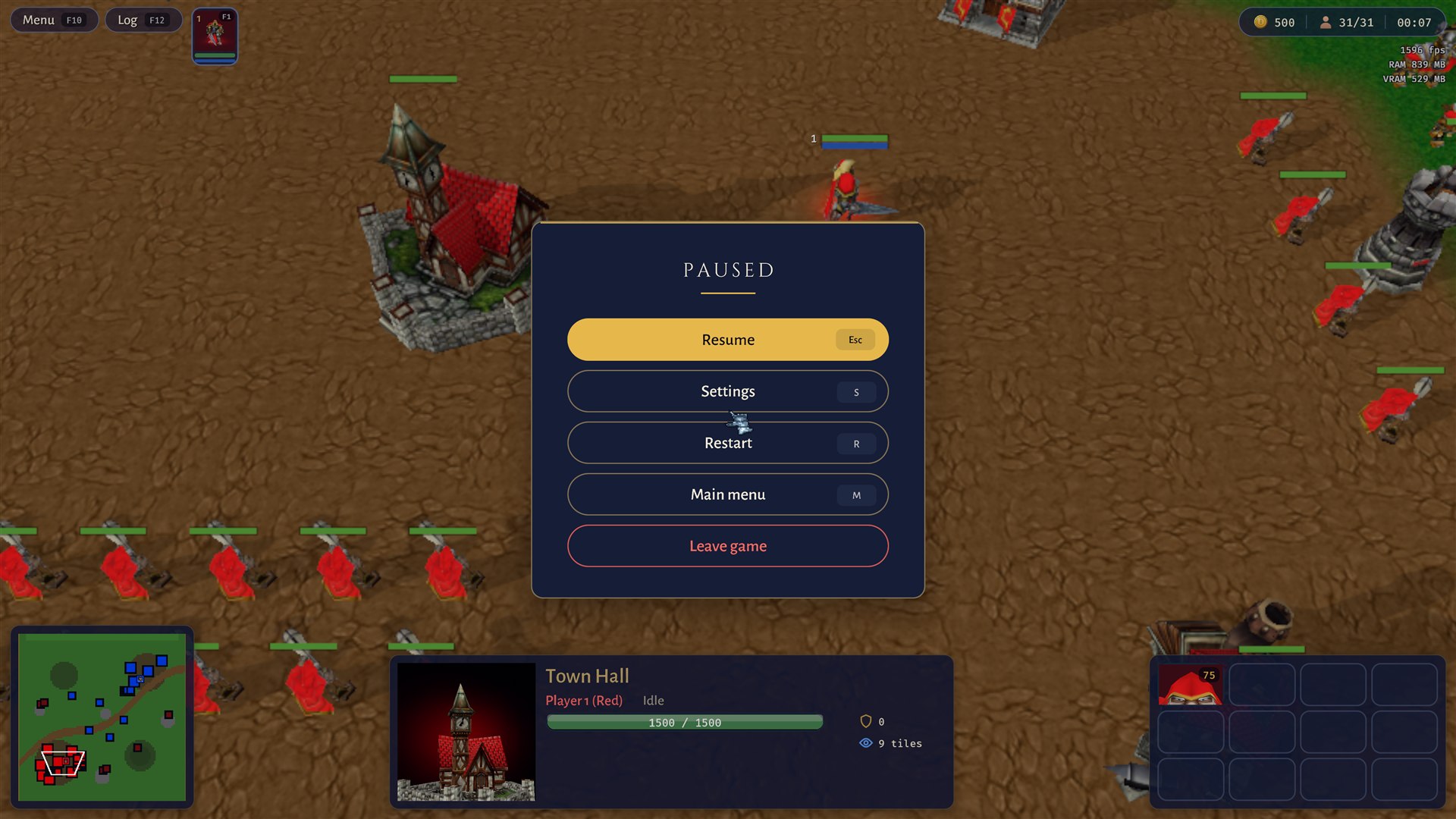
Esc (or F10) opens the menu and pauses the game. It has four buttons: Resume, Settings, Quit to start screen and Quit game. The settings are the same pages as on the start screen, and the minimap stays visible there so you can see what the size slider does. Some settings apply at once (health bars, scroll speed, frame limit) and the others at the next map start. Esc again closes the menu.
Hiding the interface
Ctrl H or /hideui hides everything: the panels, the minimap and the map's own interface, so the screen shows only the game. Opening the chat shows it again, so a line you type is never invisible. The interface is also hidden while the menu or the loading screen is up.
The map's own interface
A map can add its own text, buttons and panels from Go, and its own slash commands. These sit in the same flat style on top of the screen. See A map's own interface and Commands and interface.
Tooltips use the game's real numbers
The shared tooltip reads the map's definitions, so it is never a guess: an ability shows its mana cost, cooldown and Range in tiles; a unit or building you can train or build shows its health, attack, armour and speed (speed in tiles per second) next to the gold cost and time.